Task Manager
Forces you to manage arithmetic, direction, and prioritization on one screen without letting the main flow collapse.
Why recruiters care about it
This module measures how well you decide what to protect first while multiple cognitive channels compete for attention.
Inside the Compass battery, it reveals whether you can set correct priorities when tempo rises.
Step-by-step simulation flow
Two tasks run on one screen
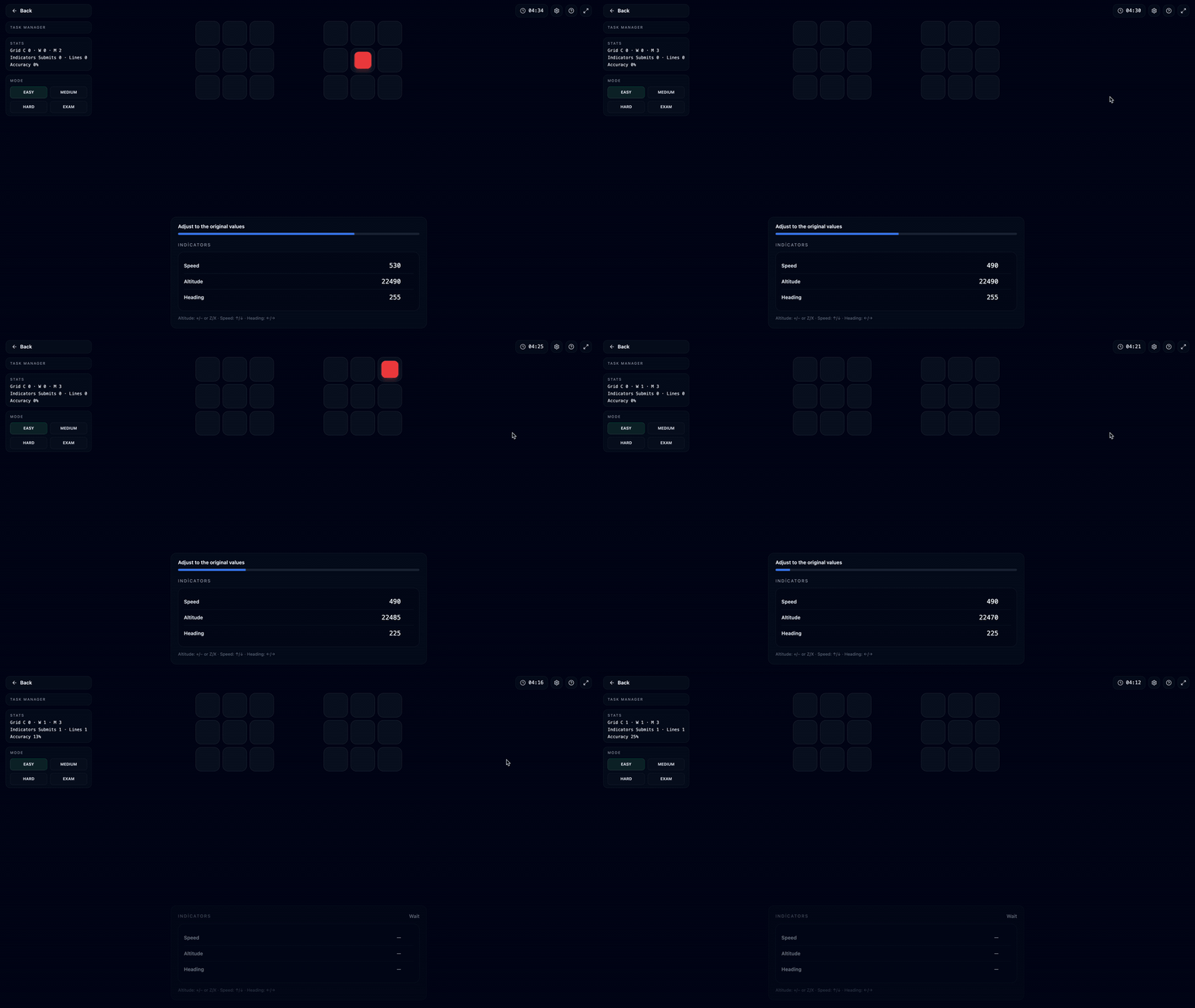
Two 3×3 grids sit side by side at the top, and an indicator panel with Speed / Altitude / Heading values sits at the bottom. The grid task and the indicator task run independently, at the same time.
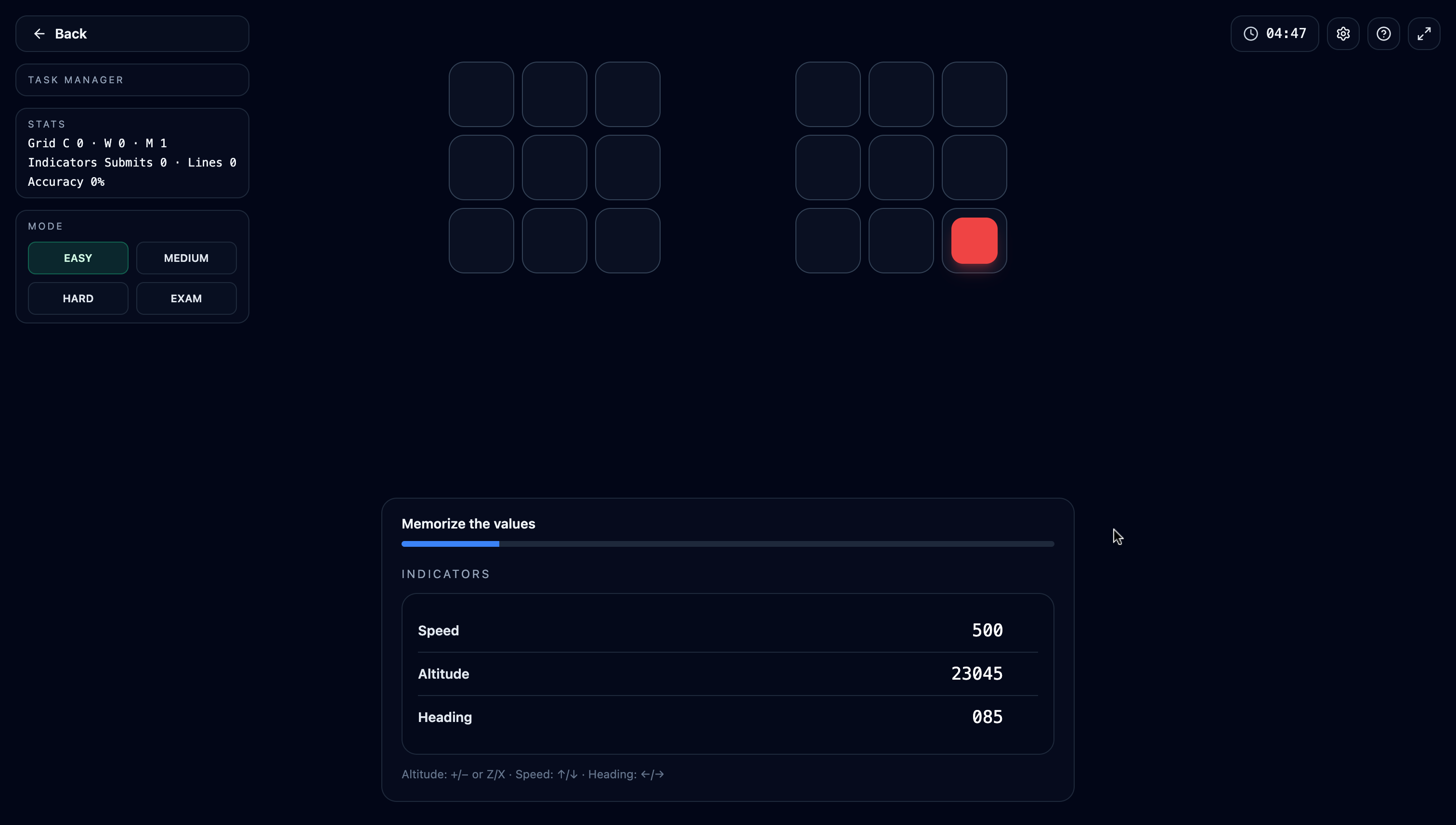
Grid task: answer the red square with its position digit
A cell on one of the two grids lights up red for about 3 seconds. You press the digit matching its position: bottom row 1-2-3, middle 4-5-6, top 7-8-9 (number row or numpad). A correct press in time shows a green check; a wrong key or a timeout shows a red cross.
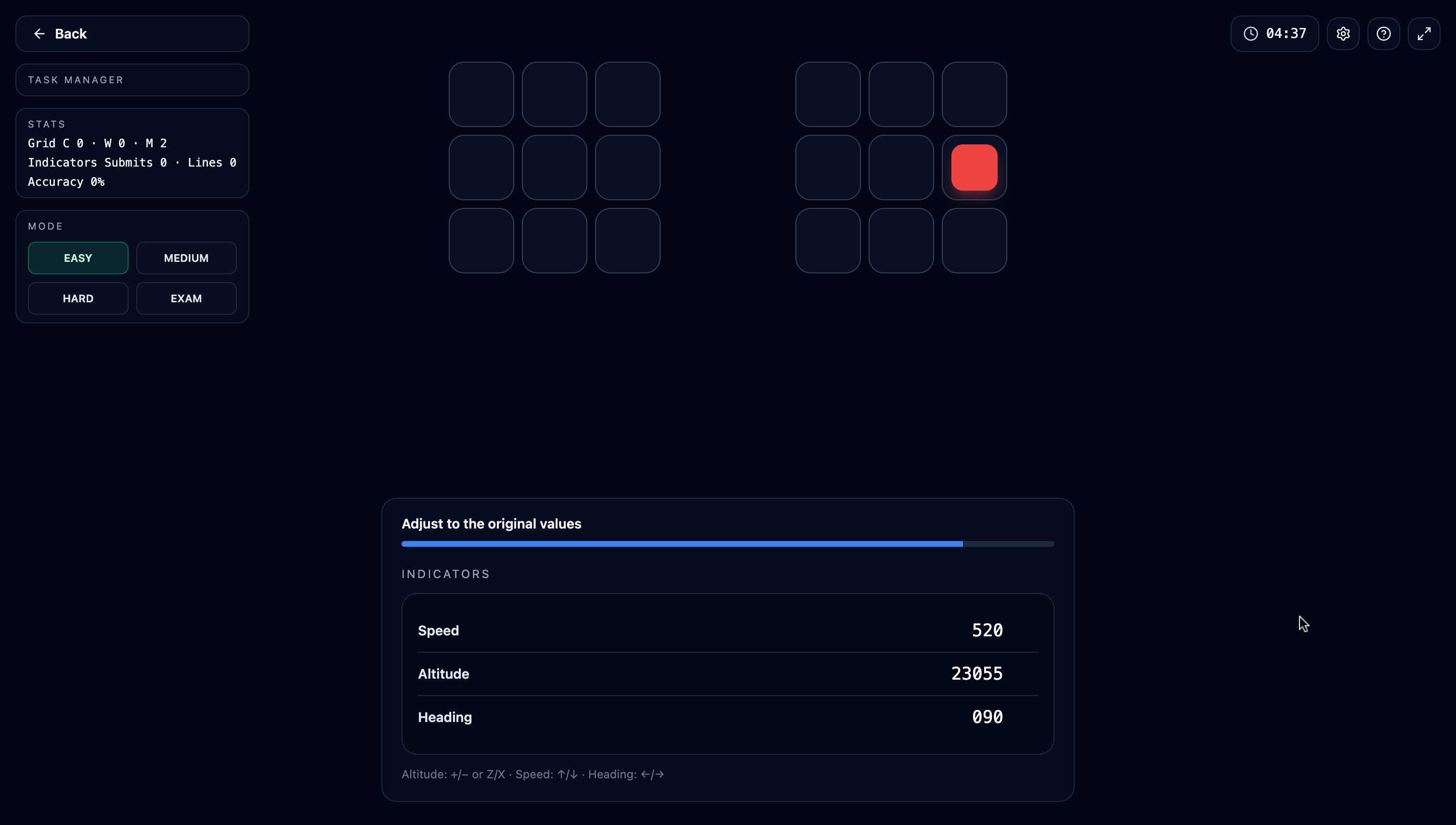
Indicator task: memorise, then restore the original values
The panel first says "Memorize the values" and shows the three numbers; they hide for 5 seconds, then return changed ("Adjust to the original values"). You dial Speed with ↑/↓, Heading with ←/→ and Altitude with +/− (or Z/X) back to the memorised values and press Enter. The grid task keeps running the whole time.
Scoring
The score weighs grid accuracy 60% (correct / correct+wrong+missed) and indicator accuracy 40% (correct lines / submitted lines). A session lasts 5 minutes; Mock Exam mode ramps Warm-up → Standard → Advanced in 100-second blocks.
How difficulty scales
Higher difficulty compresses everything: red squares come more often (every 5–10 seconds on Warm-up, 2–5 on Advanced), the memorise window shrinks from 15 seconds to 7, and the adjust window from 20 seconds to 10.
What separates average from top candidates is not dropping the grid while adjusting the indicators: candidates who memorise the values as short verbal labels and keep their eyes cycling to the grids during adjustment protect both accuracies at once.